Lootbound Steam Deck Launch Fix: Official Compatibility Advice
Follow the developer’s Lootbound Steam Deck launch advice, check listed compatibility tools, and separate Linux reports from display problems.
What is the official Lootbound Steam Deck fix?
In the August 14 STEAM DECK - FIX post, ArtDock recommends disabling “Force the use of a specific Steam Play compatibility tool” when Lootbound is not working correctly on Deck.
This article explains that developer instruction, checked September 7, 2026. It is not a benchmark or a hands-on compatibility test by this site. The post does not identify one universal cause for every crash, and its list should not be treated as a guarantee for future game or Proton releases.
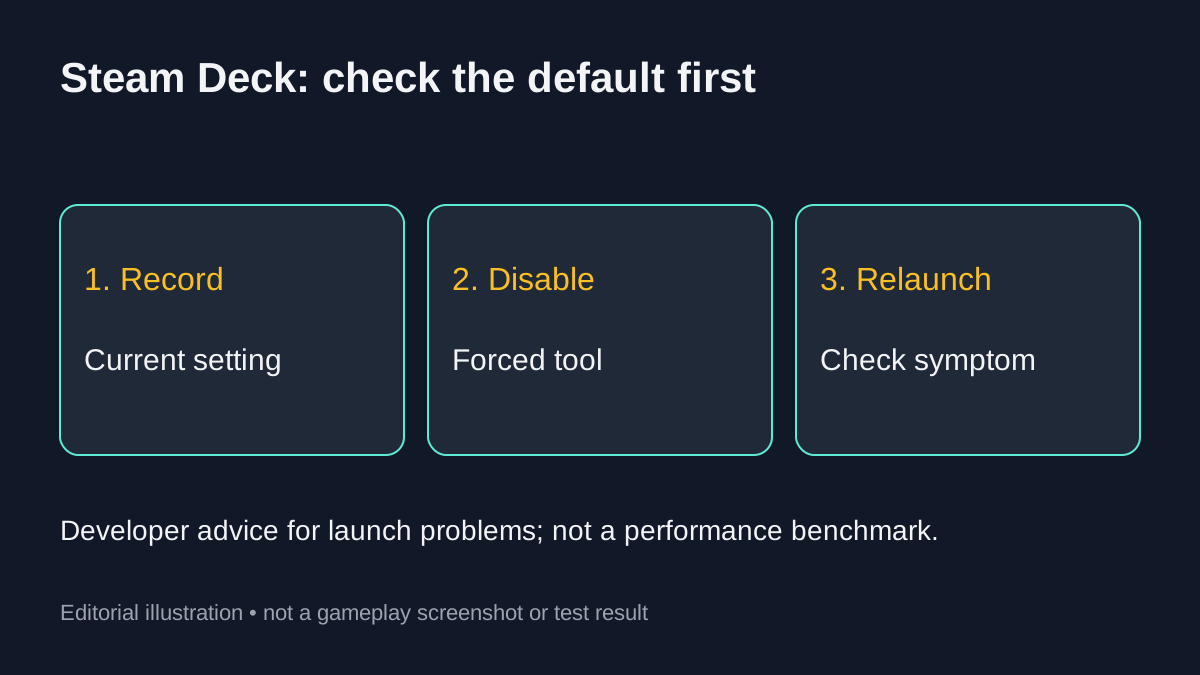
Editorial illustration of the developer’s advice, not a gameplay screenshot.
Remove an existing compatibility override
- Close Lootbound and note the compatibility setting currently selected.
- Open the game’s Properties → Compatibility in Steam.
- If the force-compatibility option is enabled, disable it as the developer recommends.
- Relaunch the game and check whether the original startup problem remains.
If that option was already disabled, this step does not change your setup. If the game starts correctly, there is no reason to cycle through other tools merely because they appear below.
Which compatibility tools does the developer list?
For cases where a forced tool is needed, the pinned post lists the following entries:
| Entry as listed | Source scope |
|---|---|
| Steam Linux Runtime 1.0 (scout) | Listed runtime option; not a Proton version |
| Proton Hotfix | Listed Proton option |
| Proton Experimental | Listed Proton option |
| Proton 11.0 | Listed Proton option |
| Proton 10.0-4 | Listed Proton option |
| Proton 9.0-4 | Listed Proton option |
The developer says older versions cause crashes. That is the post’s compatibility warning, not an independent test of every older release. There is no fastest-to-slowest ranking in the source. Use entries actually available in your Steam installation; this guide does not require downloading an unofficial build to match the list.
Test an override only when needed
If the default configuration does not resolve the problem and you need an override, choose one available option from the developer’s list, then retest. Record the game version, tool, and result before changing anything else. Revert a change that makes the problem worse to the setting you recorded.
Reaching the title screen is only a startup check. Confirm that menus and an existing save also work before treating your setup as usable. This page does not recommend deleting saves or replacing a Proton prefix as a troubleshooting shortcut.
Why do desktop Linux replies suggest forcing Proton?
The same thread contains two desktop Linux reports:
- A Linux Mint user says explicitly forcing Proton Experimental made the game run.
- A Nobara user says forcing Proton 9.0-4 resolved endless loading.
These are individual player reports. They do not overturn the developer’s Deck starting point or prove that all Linux distributions need an override. Identify whether you are using a Steam Deck or a desktop Linux installation before following a reply.
Is an ultrawide display problem the same issue?
Not necessarily. Replies in the thread discuss a separate ultrawide resolution workaround on Windows. This page does not apply those Windows file-editing instructions to Steam Deck. If your symptom is tied to an external ultrawide display, report that detail rather than assuming that Proton is responsible.
Steam Deck launch FAQ
Should I force Proton if the game already works?
The developer’s advice is conditional on a problem. The source gives no reason to replace a working configuration.
Which listed version has the best performance?
The post provides compatibility options, not FPS or battery-life comparisons. This site has not benchmarked them.
Does this fix small interface text or controller prompts?
This page addresses startup and compatibility advice. It does not establish a text-size fix or a controller-layout change.
What should I report if it still fails?
Include the device, OS, game version, compatibility setting, exact symptom, and changes already tested. Do not include account credentials or private files in a public report.
Source and related reading
ArtDock’s pinned Steam Deck fix and Linux/display replies, checked September 7, 2026. The developer instruction and community reports are distinguished above.
After startup works, use the Lootbound first-run guide to plan an initial session and the inventory grid guide for equipment placement.
Was this helpful?
Thanks for the feedback!